
Want to switch from Outlook to Zimbra desktop and needs to import OST file? If yes, then with this article you will get a solution. Here, we’ll teach you how to import OST files to Zimbra desktop with easy steps.
Microsoft Outlook is the email application that many users use in this entire world. With Outlook can easily access their Exchange, and IMAP email accounts. For saving users’ profiles data as a backup Outlook use OST data file. This file creates a copy of all emails, contacts, calendars, and other data of users after doing each task with Outlook.
In addition to Outlook, many other email clients are also available in the market that provides the same features. One of the most used email clients after Outlook is this Zimbra Desktop. Various users are nowadays want to switch to this email client from Outlook. The main reason is Zimbra Desktop is an open-source application, on the other hand for using MS outlook users requires to MS Office license.
But direct migration from Outlook to Zimbra client is not possible because OST file importing option is not available in Zimbra client.
Also Read:- How to Convert/Save Outlook Emails from OST to EMLX files?
Now, let see the process to transfer data and import Outlook OST to Zimbra Desktop client.
Smooth Solution to Transfer Data or Import OST to Zimbra Desktop client
The main challenge for users is, there is no direct is available in Zimbra desktop client to import OST files. For this reason, users become unable to move OST file data in Zimbra desktop client.
So, the solution for users is to transfer their OST file data to Zimbra compatible TGZ files. This process a user can perform easily with the use of an automated solution known as eSoftTools OST Converter Software. This single software has the ability to easily and securely export all from OST to TGZ files in easy steps.
Steps to Import OST files in Zimbra Desktop Through eSoftTools OST Converter:-
- Download, then launch IDC OST Converter to a windows based computer.
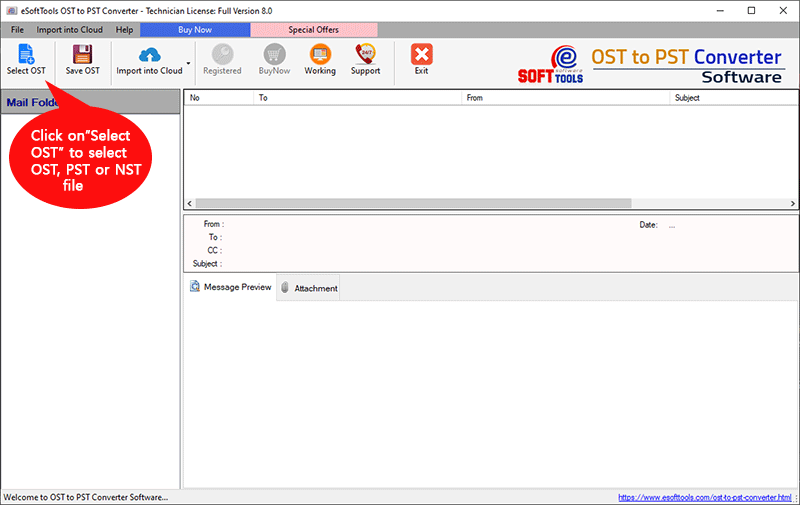
- From the software’s main screen, press the “Select OST” button.
- Import OST files into the software and pres start scanning.
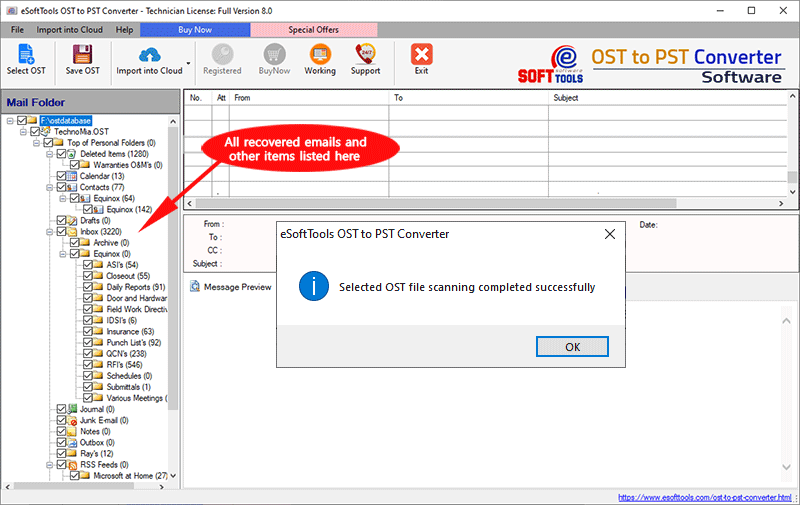
- Start scanning the OST files and extract all folders, subfolders, and individual items from OST files.
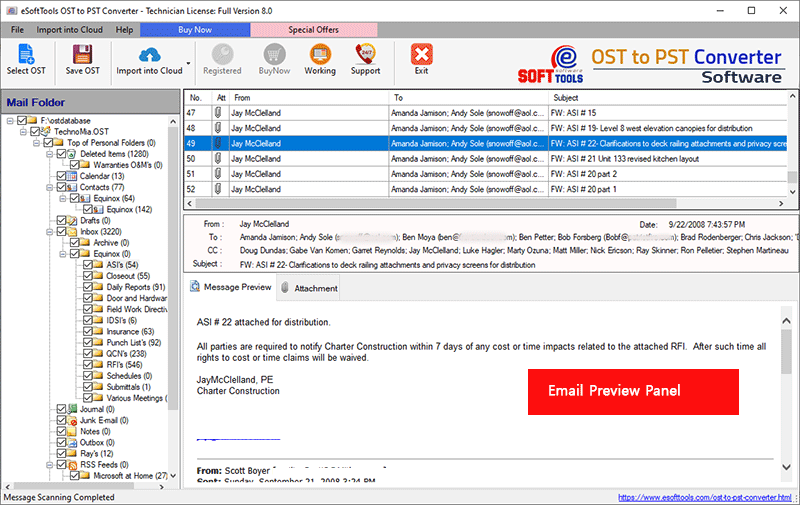
- Select the required OST folders and click the Save OST button from the top menu.
- From the list of conversion choices, choose the Export to Zimbra TGZ option.
- Apply mail filter option and select email of specific date for transfer them to TGZ.
- By hitting the browse button, you may choose a location to save the resultant Zimbra TGZ files with Outlook OST emails.
- Finally, click the Convert button to begin the OST to Zimbra TGZ file conversion process.

In very little time, the software will move all emails of Outlook OST file to new TGZ files. After the process completion easily import the resulting TGZ file to Zimbra desktop clients for access Outlook OST emails.
Conclusion
Through this blog post we’ve covered the topic that you need to know for transferring data and Import Outlook OST to Zimbra Desktop. A user can easily take the help of the eSoftTools OST Converter Software for doing the operation of importing OST files to Zimbra client. It’s easy to use and allows you to convert OST files to TGZ without losing a single bit of data. For a fast understanding of how this application works, download a free demo edition of this tool now.