
Are you an Outlook user who wants to save Outlook profiles items from OST to MSG files? If that’s the case, this blog could be a place where you will get the right solution. Here, we’ll describe the complete steps on how to Export/Convert OST to MSG files files.
Outlook also allows users to store their profile data to their local drive after sending/receiving emails and performing other functions. Outlook provides a variety of file formats for preserving a user’s profile data locally. OST and MSG are the file formats that Outlook supports for saving users’ emails, contacts, and other items.
Both these MSG and OST files support saving Outlook users’ data but works differently from each other.
Outlook users OST files to create copies of databases of Exchange or IMAP accounts. Outlook keeps all user data, including emails, contacts, calendars, and other sorts of data, in a single OST file.
Apart from saving databases in OST, Outlook offers MSG files to save user emails and other data items to individual files.
Also Read:- How to Export Outlook OST Contacts to VCF/vCard? Best Method
What users’ needs to export Outlook items from OST to MSG files?
- Users need to preserve emails individually to Outlook MSG files because organizing huge amounts of data with a single OST file is hard.
- MS Outlook does not allow to open of orphaned OST files directly. But a user can easily view all types of MSG files, using Outlook and MDaemon applications without facing any difficulty.
Powerful Utility to Export/Convert Outlook OST to MSG files
With ease and great speed, a user can save Outlook OST emails in MSG files using an automated tool like- InstantDataCare OST Converter Software. This is the finest program that will assist you to export Outlook OST emails and other items to MSG files. It allows users to export all emails, contacts, calendars, and other data from OST files at once. This tool will save all emails and other objects from OST to separate MSG files with ease and less effort.
How to Export OST to MSG files with IDC OST Converter?
- Download and Install InstantDataCare OST Converter on a Windows PC.

- Launch the software and press the Add OST button, then click the Browse button.

- Import OST files into the software and start the file scanning process.

- Preview all data from OST and select required folders from OST files.

- After you’ve chosen your needed folders, click the Convert OST button from the menubar.
- Select the Export to MSG option from the conversion options list and hit the browse button to select a saving location for resulting MSG files.
- Begin the process of exporting data items from OST to ICS files by clicking the Convert Now button.
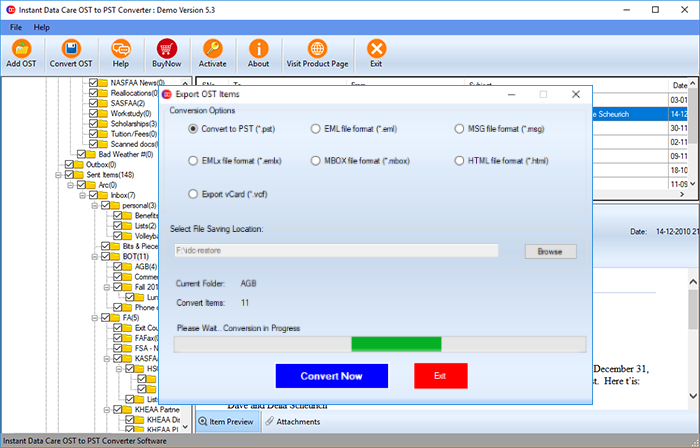
Smart Features of Instantdatacare OST to MSG Converter-
The following are some of the outstanding features of the IDC OST to MSG Converter Software:-
- In order to save our users’ time, the software allows users to export all data from OST files to MSG at once without affecting the contents.
- It allows users to adjust or choose a destination path as needed for saving output MSG files
- Totally independent program doesn’t need any additional application to perform the conversion.
- Supports to convert OST files with no size restrictions problems.
- Convert an infinite number of emails and other data items from OST to MSG with any problem.
- Offers a free DEMO version facility for users to test the software’s efficiency and convert OST to MSG files with up to 25 email messages for free.
Conclusion
For users who needs to Export Outlook emails and other information from OST to MSG files, the best solution is to use an automated tool. A user can easily try IDC OST Converter tool to easily convert OST files by following the above-mentioned steps. To learn more about this software’s working method and capabilities, download a free trial edition of this software now.