
Last updated: December 11th, 2021 at 01:47 pm
We’ll teach you how to Export Outlook contacts to VCF/vCard format through this post. To effortlessly export contacts in bulk from Outlook OST to vCard/VCF files, read and follow the complete mentioned below.
In addition emailing process users use Microsoft Outlook email client for doing various other things. One of those Outlook addition features is saving users’ contacts. Outlook saves all user contacts Outlook data file PST and OST with all other users’ data including- emails, calendars, etc.
But there are various problems with Outlook OST files. The Outlook OST file is not sharable and also only works with Outlook with a server connection.
So for users who want to access this OST file with any other may face various difficulties. As a result, users may need to export contact items from OST files to any easily sharable and accessible file type like- vCard.
vCard/VCF files are universal file type that works more than applications and devices for preserving contacts. As a result, the user who needs to access their contacts outside Outlook requires to export contacts from OST to vCard files.
Also Read:- How to Convert/Save Outlook Emails from OST to EMLX files?
Export Contacts from Outlook OST to VCF/vCard Files- Relaible Solution
With the features of saving contacts, Outlook allows provides the facility to Export contacts from data files PST and OST to vCard files. But user becomes unable to use this method when they lost their access to Outlook profile or data files. The reason can be corruption or encryption in OST files or any other problem.
When a user comes in this case, the best option which can help the user is using Automated software. The best utility to export Outlook OST Contacts to VCF/vCard is using InstantDataCare OST Converter Software.
Using this tool a user can easily extract Outlook contacts from corrupt, encrypted, or orphaned OST files with a smart process. In a single process, it provides the facility to export multiple contacts from OST files to vCard files.
How to Export Outlook OST Contacts to VCF/vCard Using IDC OST Converter?
- Download and launch IDC OST Converter to your windows machine.

- For the first screen of this software hit the Add OST button.
- Next, press the browse button and add OST file from its location.

- Software will import OST and start the scanning process to load and extract all data from OST files.

- Get a preview of all emails, contacts, calendar and other items from Software’s preview panel.

- Now choose the Contact folder from OST file and hit on Convert OST button from menubar.
- Select Export vCard(*.vcf) from the conversion options and hit the Browse button to select a location to save resultnt files.
- In the final step, click the Convert Now button to start the process of Exporting Outlook contacts from OST to VCF/vCard files.
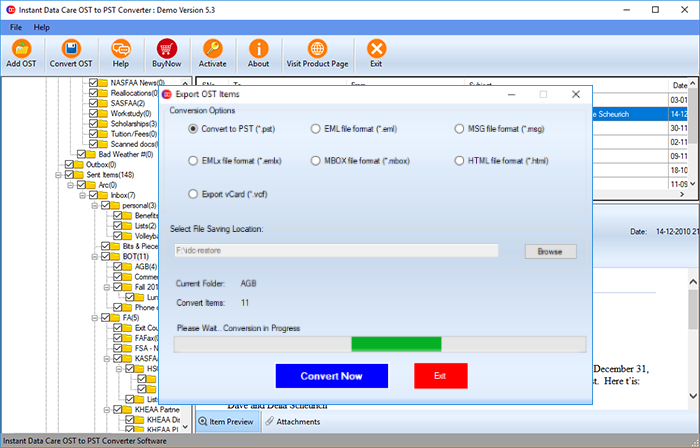
After, process completion this software will show a new dialogue with a completion message. Simply click on Ok to close the newly opened window. Next, visit the location where you have saved the resulting files and access your vCard files easily.
Conclusion
For a variety of reasons, Outlook users require to separately export contacts from OST files. vCard is the best available option for Exporting/saving Outlook OST calendars. The manual method to perform this contacts exporting task is easy but in several cases, it doesn’t help users. As a result, the best option that is available for users is to use automated third-party tools. Users can use the above-mentioned IDC OST Converter Software and export Outlook contacts to vCard files with easy steps.