
Outlook.com is gaining popularity and a large number of people desire to migrate to it. This blog will assist you if you are an Outlook desktop user who wishes to switch to Outlook.com. We’ll show the entire process Import Outlook OST to Outlook.com account in this article. So, let’s start the topic.
Users use multiple email applications to execute the emailing process and Microsoft Outlook is one of them. Outlook allows users to save all data from a user’s profile locally after completing each task. For this Outlook uses OST files in which it preserves emails, contacts, and other data from a user’s profile.
Outlook includes all of the functions that users require to send emails safely. However, as technology advances, all users are increasingly turning to cloud-based apps.
Microsoft has also included Outlook.com, a free cloud-based emailing service, with all functions that a user expects from cloud-based or web-based services. It’s easy to use, has enhanced security, and lets you send and receive emails for free.
As a result, many customers migrate to this service from their desktop email program.
Also Read:- How to Transfer Emails from Outlook OST to Yahoo Account?
Quick Solution to Import Outlook OST to Outlook.com Account
A user can easily complete the operation of importing Outlook OST to Outlook.com with the smart solution known as eSoftTools OST Converter Software.
A user may use this tool to easily transfer several OST files to an Outlook.com account in one go. It only requires OST files and Outlook.com account credentials to complete the data transferring procedure.
And in a very short time, it will complete the migration task without any problem.
How to Import Outlook OST files to Outlook.com with OST Converter?
- Download and Launch eSoftTools OST to PST Converter Software on your computer.
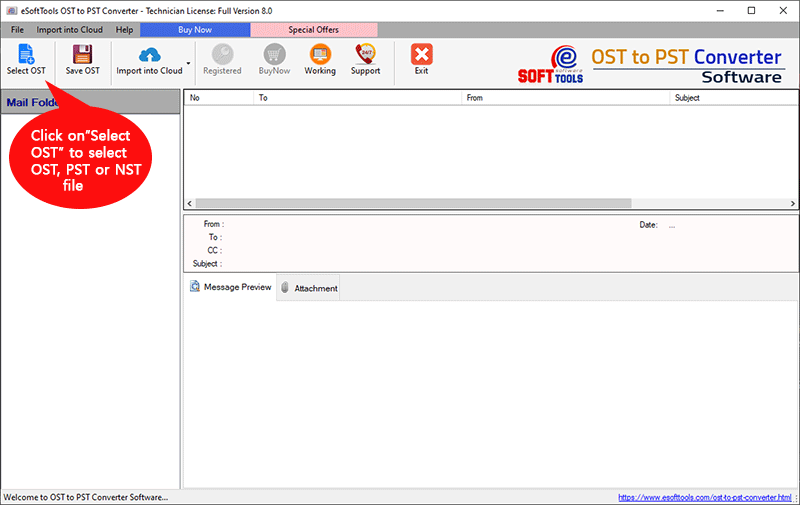
- From the first screen, click the Select OST button to add OST files in the software for conversion.
- After this, Select the Single File Conversion or Bulk File Conversion mode, and hit the Next button.
- After that, add single or multiple OST files to the software and click the Start Scanning button.
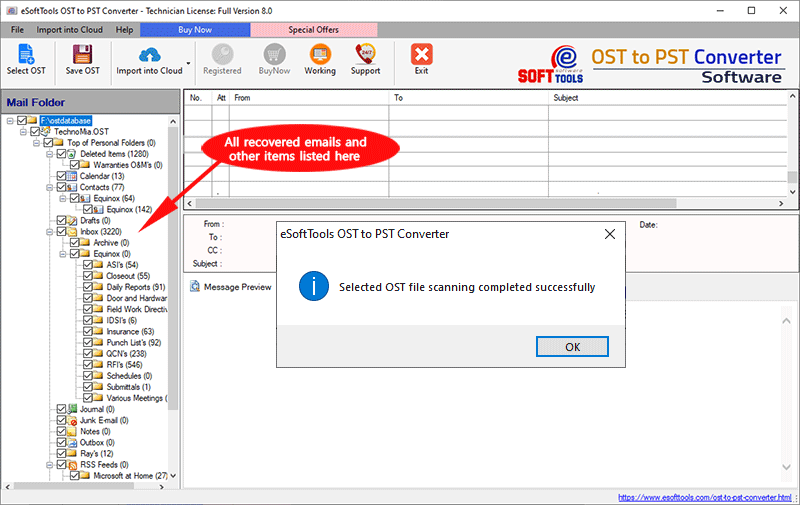
- Scans OST files and extract all its inner data items and components.
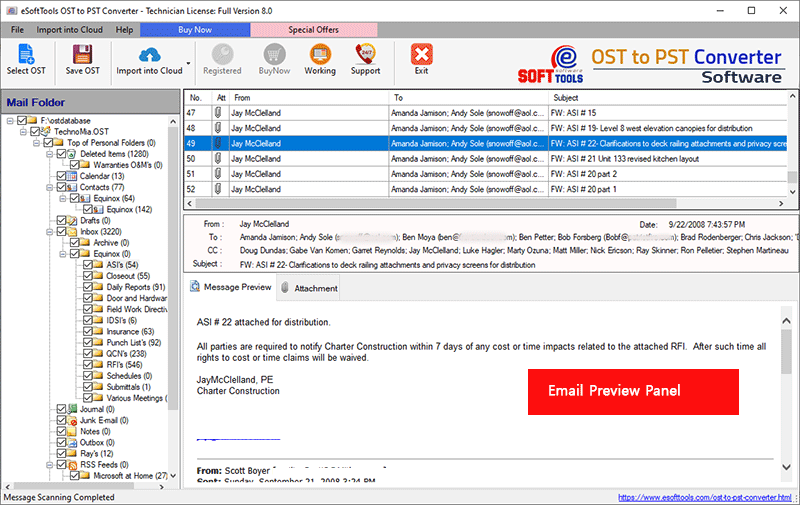
- Select the relevant folders from the preview panel and click Import to Cloud>>Import OST to Outlook.com button.
- Enter your Outlook.com email address and password, and apply additional preferences (such as- mail filtering and primary or custom folder selection, etc).
- Finally, click on Convert to export all of your OST mailbox folders to your Outlook.com account.
Conclusion
There is currently a huge number of customers that desire to transfer from Outlook desktop to the cloud-based emailing service Outlook.com(Hotmail). To do so, users must first Import Outlook OST to Outlook.com. We’ve described a step-by-step process in the above sections of this blog for doing this activity with ease. Use OST Converter and follow all the steps to Import OST to Outlook.com account securely and easily.