
Last updated: February 8th, 2022 at 05:15 pm
A large number of users want to switch from Outlook desktop to YahooMail cloud. Now, it is possible by importing Outlook data file OST to YahooMail account.
So, read this article, to know the steps to Transfer Emails from Outlook OST to Yahoo Account…
Outlook and YahooMail both are applications that use for emailing. Both these email clients provide different features to their users for making the emailing process much easier.
The main difference between these applications is, Outlook is a desktop application on other hand YahooMail is a cloud application. As compared to Outlook desktop, YahooMail has much more advanced features.
Due to this reason users in a huge amount now wants to switch to YahooMail.
Also Read:- How to migrate/Import OST files to Gmail Account?
Benefits of Switching from Outlook to YahooMail:-
- Access Account Anywhere:- Outlook account is accessible from single desktop/machine. But users can access YahooMail account from different devices in a particular time.
- Compatibility:- MS Outlook is windows based application and works on only windows computer. On the next side, YahooMail doesn’t have any compatibility issue. Users can access their Yahoo account from any device or operating system by just opening a web browser.
- Storage:- Outlook uses user’s local drive to save their profile data as backup. On other hand YahooMail provide free cloud storage. YahooMail allows to save users emails and facilitates users to free up space from their local drive.
Because of these benefits of cloud application (YahooMail) users wants to switch from Outlook to YahooMail.
Efficient Solution to Quickly Import Outlook OST to YahooMail Account
In a direct manner, users can upload Outlook OST files to Yahoo with the aid of eSoftTools OST Converter Software. For migration, the software only needs OST files and Yahoomail account credentials.
Users can easily transfer emails from a single or several Outlook PST files to Yahoo, at one time. During migration, the software also preserves complete data integrity and properties and provides the best results.
How to Import Outlook OST to YahooMail with eSoftTools OST Software?
- Download OST Converter software and perform its installation on your windows computer.
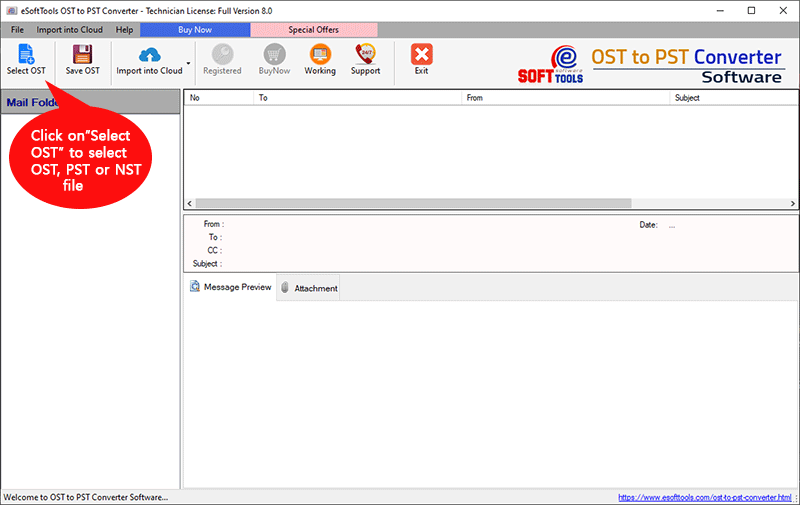
- Launch the software, and click the Select PST button from its first screen.
- Select a single file conversion or bulk file conversion mode and click on Next.
- Add/import Outlook OST files in the software and hit the start scanning button.

- Load entire folders and data from Outlook OST and choose needed folders.
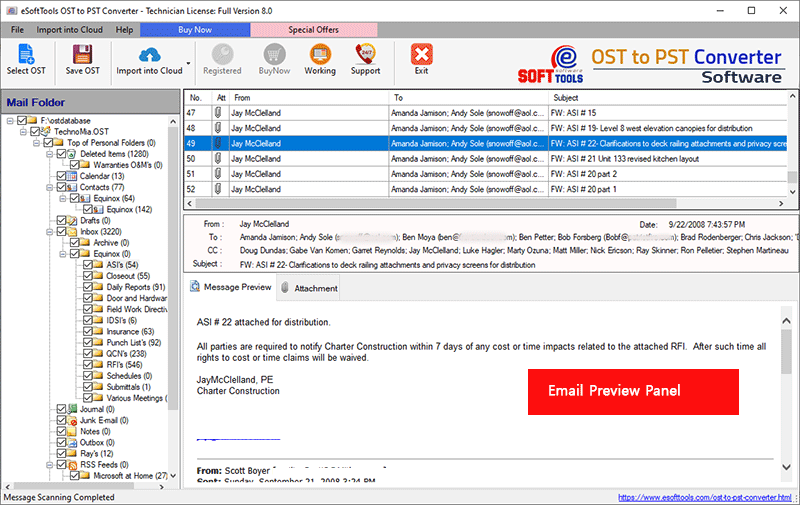
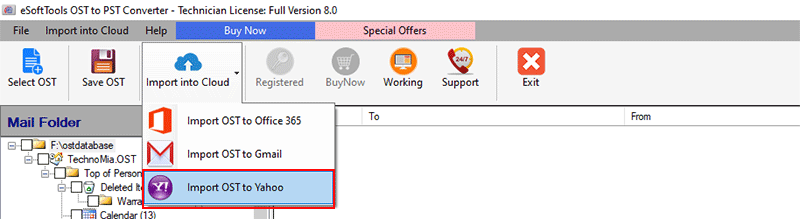
- After selecting required folders click the Import to Cloud button.
- Input your YahooMail account Email address and password in the next opened window.
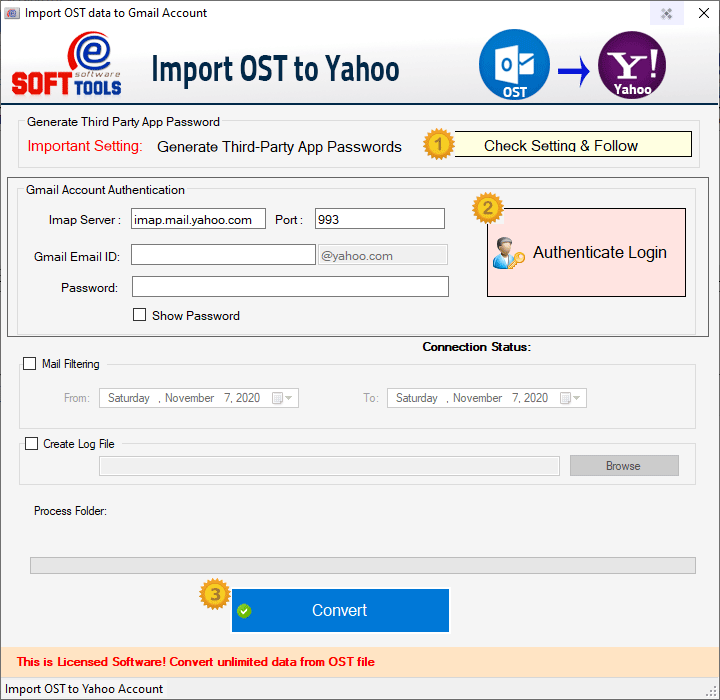
- Apply mail filter option and create a new folder on YahooMail account to save Outlook email.
- In the final step, hit the Convert button and Transfer Emails from Outlook OST to Yahoo Account.

After applying all these mentioned steps the software will start the migration process. The software will now smartly move all user’s required Outlook emails to YahooMail account in a very short time.
Conclusion
A large number of users, who wants to switch to cloud-based application prefers YahooMail. It is the best option for users which offers all features and functions of cloud-based emailing applications. To switch easily from Outlook to YahooMail users can use the method mentioned above. Try the PST Converter and Transfer Emails from Outlook OST to Yahoo with quick steps.