
MS Outlook is subject to various errors that make it impossible for the users to send and receive emails. The Outlook not implemented is another error that takes place when you send/receive, or forward a message from MS Outlook. This error occurs on the screen, “Microsoft Outlook Not Implemented“. Hence, you are not able to send or receive emails. So, how do get rid of this error to start using Outlook once again smoothly? In this blog, we have written ways on how to fix the error and the common causes behind the error.
Get eSoftTools Outlook Recovery Software to instantly resolve all MS Outlook Errors.
 Benefits of using this software:-
- Repairs corrupt Outlook PST file.
- Recovers lost emails and attachments from corrupt PST file.
- Supports all versions of MS Outlook.
- Provides multiple file format convert PST like- EML, EMLX, MSG, vCard, CSV, MBOX, HTML, Office365, etc.
Causes of Outlook error not implemented
These are the reasons why the error appears in Outlook:-
Antivirus– The antivirus scans the mails before sending or receiving them. It can be the reason why the user is not able to send/receive email and the error Outlook shows the not implemented error.
Third-party plug-ins- Sometimes, the error might occurs when uses any additional plug-ins in Outlook which may interrupt the smooth performance of Outlook.
Send/receive setting file is damaged- This error occurs when send or receive settings of Outlook are not working due to a damaged file.
When the user does not install MS Outlook accurately– If the user has two versions of Outlook installed on the computer, the user may face not implemented error.
How to fix “Not Implemented” error in outlook, Manually?
Solution1:- Deactivate Antivirus Program-
The anti-virus application scans the mail that is sent or received in the inbox. The scanning process delays the process of sending and receiving emails. Hence, we advise you to deactivate anti-virus application while using MS Outlook.
Solution 2:- Deactivate Installed Add-ons- in Outlook
To resolve the errors caused by add-ins, you need to start Outlook in the safe mode and then de-activate add-ins from it.
- Go to Outlook, visit File go to Option, and select the Add-in tab.
- Press on the Go tab, a new dialogue box will appear.
- Disable the plug-ins.
- Re-launch the Outlook application.
- See whether the issue is solved or not.
Solution 3:- Recreate the settings file
- Put the given code on the address bar of your file Explorer on your computer:-
C:\Users\%username%\AppData\Roaming\Microsoft\Outlook\ - Search for SRS file
- Rename the file with desired name of your choice.
- Now restart the Outlook Application.
Solution 4:- Repair MS Office-
Sometimes during MS Office inappropriate installation, the user get unable to send/receive emails.
- Visit Control Panel and choose Programs and Features option.
- From programs windows, select MS Office application.
- Click on Microsoft Office and press change option.
- In the opened window, click repair tab and press the continue button.
Solution 5:- Using Scan PST tool
It is an inbuilt utility of Microsoft Office that provides the facility to fix the normal issues from Outlook PST and is highly beneficial when no one method works.
- Use this command to start the tool in your computer:-
C:\Program Files (x86)\Microsoft Office\Office15 - Open Scan PST.exe
- Click on Browse button to select the Outlook PST file from its location and press the Start button.
- Now press the click on Repair and the tool will check for inconsistencies and will repair it.
Note- The tool will fail if PST file is damaged badly.
Automated Method to solve the error
The most proficient tool to repair corrupt PST files of Outlook is eSoftTools Outlook Recovery Tool. This tool will securely repair corrupt PST file and also allow you to recovers lost emails and other items from corrupt, damaged or inaccessible PST file. After completing the repair process you can convert PST into healthy PST file and various other file formats like- EML, EMLX, MSG, vCard, CSV, MBOX, HTML, Office 365, etc.
How to Resolve Outlook Not implement Error with eSoftTools:-
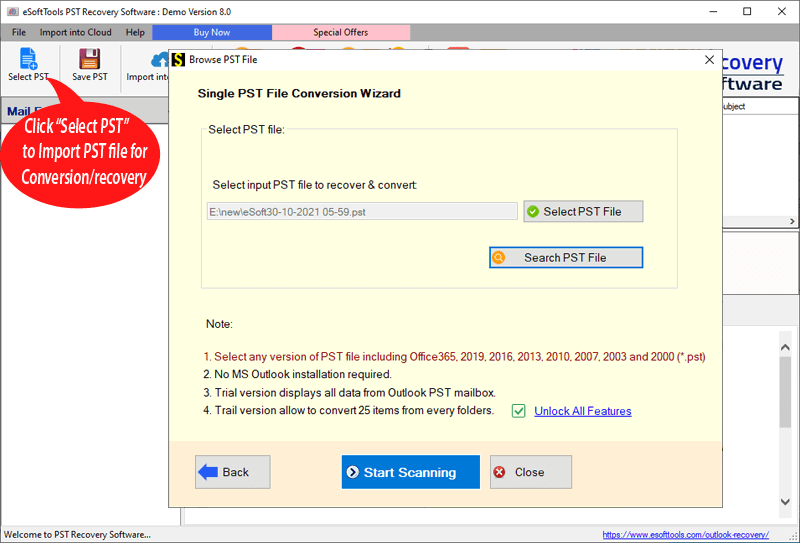
- Launch the eSoftTools Outlook PST Recovery Tool Select the source PST file by pressing Add PST tab.

- Select PST file from its location and press the Start Scanning button to perform the repairing process of Outlook PST file.
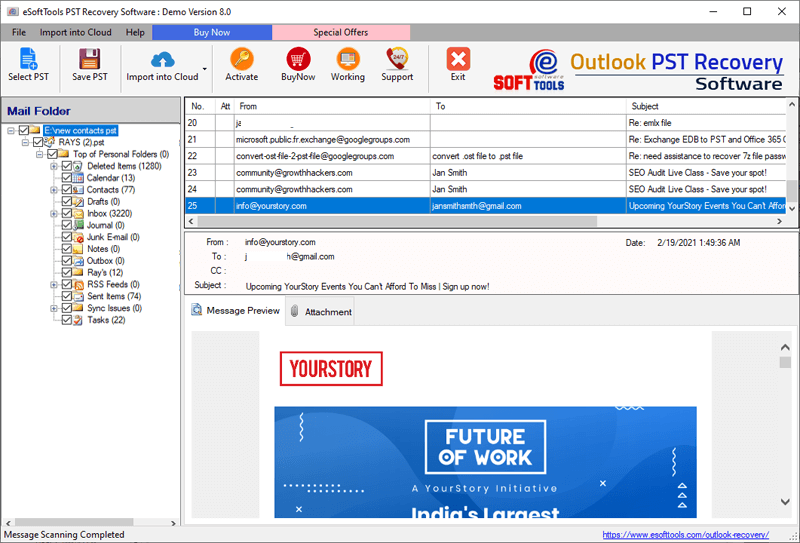
- The recovery process is complete; the software will show all inner items of PST file.
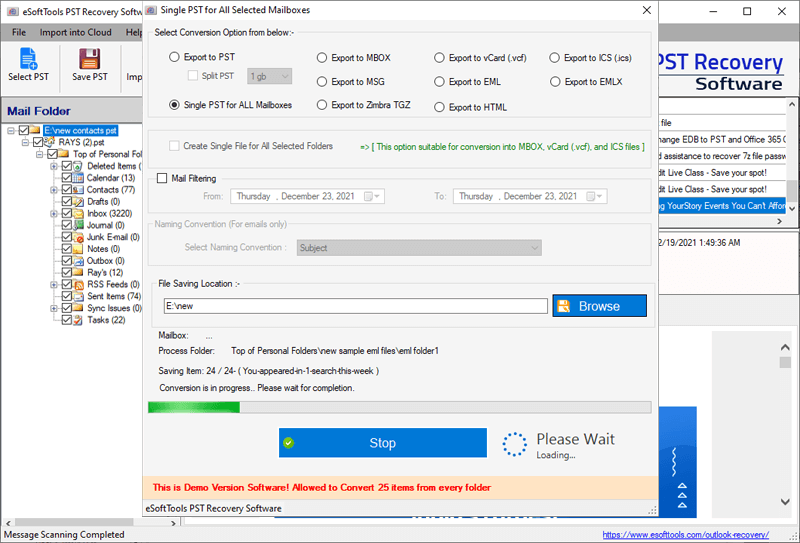
- Click on Save PST button to convert PST file into your desired file format. Choose the file format in which you wan to convert the PST file.

- Select File saving location and and press the Convert and conversion process.
Conclusion
The article has outlined the causes of the error, manual method to fix it and the automated method. Direct method is reliable, professional and free from limitations.