

Here in this blog, we are going to discuss the process of downloading, installing, and configure an account in Lotus Notes email client on windows machine. Simply follow this step by step guide to access Lotus Notes for doing emailing task in a reliable manner.
Table of content:-
- Download IBM Lotus Notes for windows?
- How to install IBM notes on Windows machine?
- How to configure lotus notes client step by step?
If you are recently using Lotus Notes but now want to switch from Lotus Notes to Outlook or other email clients, then Download Instant Data Care (IDC) NSF to PST Converter Software. Which will give you the instant results for Lotus Notes to Outlook Migration.
How to Download Lotus Notes for windows computers?
- Simply any web browser on your computer and visit the given link:-
https://softfamous.com/ibm-notes/download/ - Now hit on the download button.

- Wait for starting the download process.

- Download the Lotus Notes 9.0.1.exe file easily on your Windows computer.
How to install IBM notes on Windows machine?
- First choose a location on your computer and create folder to save the Lotus Notes account database.
- Launch the downloaded IBM Notes setup (.exe file).
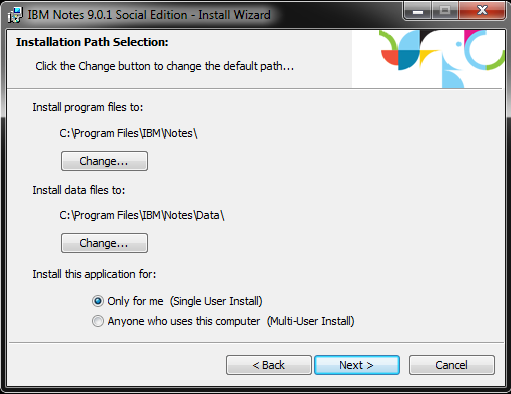
- Now a IBM Notes InstallShield wizard will now open your screen. On this window you need to click on “change” button and select the previously created folder and hit on Next.

- Read the Software license agreement and select first option “I accept the terms in the license agreement” and click over the Next button.

- Now choose any one option from Single User Install or Multi-User Install then click on Next.
- A custom setup window will now appear on your screen, on this window you have to choose the option IBM Connection.

- Select the required options and click on Install button.

- Finally hit on finish after completion of installing process.
How to configure lotus notes client step by step
- Launch IBM Lotus Notes application.
- After opening the welcome window of lotus notes click on Next.
- Enter your name and Domino server name then again click to the Next button.
Note:- In my case, i don’t want to connect with Domino Server. But if you want to connect with Domino server then should choose the “I want to connect to a Domino server” option

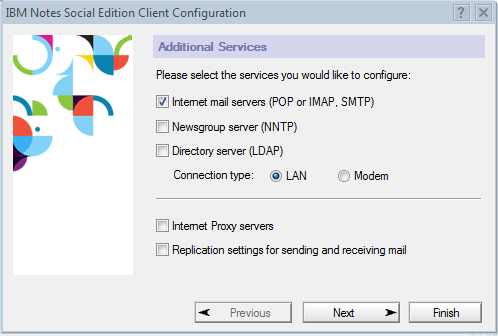
- Now an “Additional services” window will open your screen. On this section you have to select any one service to configure your account and hit the Next button.
- From the “Set Up Internet Mail” window choose incoming mail server type as per your requirement and provide the Incoming mail server name then click Next.

- Provide the Account Name and Password on Setup Internet Mail window again hit on Next.

- Now enter the Outgoing SMTP mail Server name and click on Next.

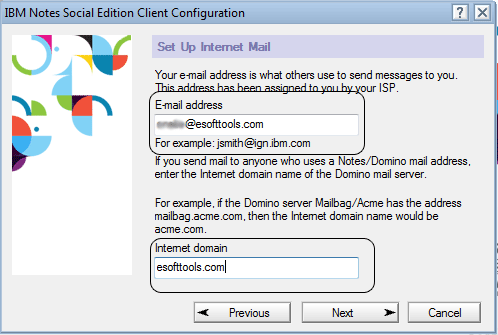
- After this enter your e-mail address and Internet domain and simply click to the Next button.
- After proceeding these steps open IBM Lotus Notes on your computer.

- Click on Open button and from the drop-down list choose the contacts option.

- Now from the right pane select the advanced option.
- On this window you will see an Outgoing Internet mail option double click on it.

- After this, click on Edit Account option and add your account details “Login Name and Password” and simply click on Save & close.
- Again click on Open from the top menu then select the Mail option and you will see that all mail are available on your computer screen.

In this way you can simply download, install and configure account in Lotus Notes on your windows machine. This blog is for the users to configure an account in Lotus Notes but if you want to switch to another email client from Lotus Notes then your can also read the given blog.
Also Read:- Transfer email clients from Lotus Notes to Outlook