
Using Excel files such as- XLSX, CSV, XLS to manage contacts is no longer a viable option. Because this same feature of saving contacts for emailing and simple communication now availble in MS Outlook. As a result, users are now want to to Export Excel into Outlook Contacts.
So, in this blog article, we’ll see the entire procedure of transferring contacts from excel to Outlook profile.
Various users use MS Excel to easily save the contact information. It is simple and easy to save many contacts in an Excel spreadsheet. Users, on the other hand, may have difficulties while accessing a specific contact from contacts in an Excel file.
After observing the same situation, Outlook added the feature of creating and managing contacts in it. Now users can keep all of their contacts in one place and access them with Outlook.
Now, most users who saved their important contacts in Excel files now want to transfer them to MS Outlook. To help users we have written this blog post. In the next sections of this write-up, we will describe the complete process of Exporting Excel files to Outlook contacts.
Also Read:- How to Convert Apple Mail MBOX to PST?
How to Export Excel into Outlook Contacts? The Most Effective Option
Users will face problems while directly importing contacts from Excel files into MS Outlook. The reason for this is Outlook doesn’t provide the option for importing Excel files such as XLSX and XLS. So, the only solution which is available for users is Converting Excel to Outlook supported PST files. This is the only approach that will work for those who need to export excel to Outlook contacts.
The best technique for Excel files to Outlook PST file conversion is using eSoftTools Excel to Outlook Contact Converter software. This utility converts Excel files with a large number of contacts to Outlook PST in a single process. With this tool, users can save excel contacts to new PST as well as to existing PST files.
Steps to Export Excel into Outlook Contacts/PST files
- Download, Install Excel to Outlook Converter Software on your PC and launch it.

- From the software’s first screen, click on Open or Browse Excel File button to add XLSX, XLS, or CSV files.
- Select the file from its location, and extract all of the contacts information from Excel file.

- Change or Map necessary Excel to Outlook fields in the mapping area, then click Next.

- Choose Import to New PST File or Import to Existing Outlook PST File from the conversion options tab.

- Then select a Destination Path for the output files and click on Next.
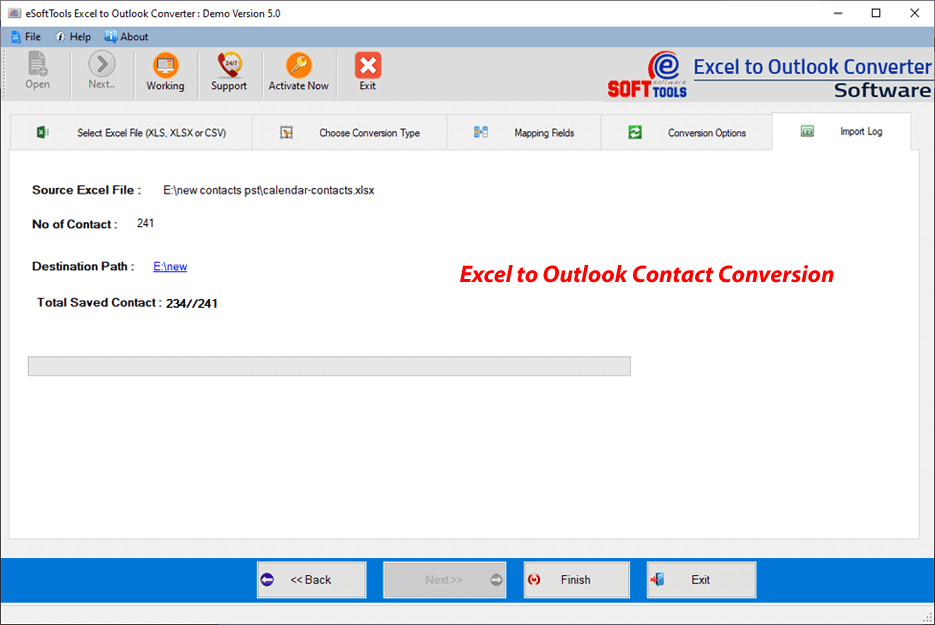
Now the software will begin the process of converting Excel Contacts to PST files. After the conversion process completion, you will get a new PST file with all Outlook Contacts.
Conclusion
Because there is no direct way to import Excel files into Outlook, so users should utilise the process mentioned above. You can effortlessly convert Excel to Outlook PST file with all of your contacts. After conversion users can also import the resulting PST file immediately into Outlook. Download and test the free demo edition of eSoftTools Excel to Outlook Converter Software now to know more about its functions.