
Last updated: September 19th, 2021 at 08:37 am
Similar to the user’s recommendation for Outlook in windows, on Mac PC user prefers using AppleMail. This is also an email client that many users use to perform emailing process. Sometimes uses come in a situation where they need to transfer their data or migrate from Apple Mail to Outlook for windows. But moving data from Apple mail MBOX to Outlook is not possible because MBOX file type doesn’t work in Outlook. Due to this reason Outlook users need to Convert Apple Mail MBOX to PST file. So, to solve your problem here we have provided the answer for How to Convert Apple Mail MBOX to PST? Simply read this blog and easily switch from Apple Mail to Outlook windows.
Why do users need to Convert Apple Mail MBOX to PST file?
- Switching From Apple Mail to Outlook:- When a user need to switch from MacOS based machine to Windows they ultimately move from AppleMail to Outlook.
- Read orphaned MBOX files of Apple Mail:- To view data from Orphaned MBOX file data outside Apple Mail.
The data transferring and accessing from MBOX file is only possible if a user converts MBOX file to PST format of Outlook. Below mentioned is the best method that users can try to perform MBOX to PST file conversion in a smooth manner.
Automated Tool to Convert AppleMail MBOX to PST file
Various email clients provide the facility of saving mailbox folders with all emails. Most of the email clients that the user uses support MBOX file types. This file allows saving all mailbox information locally in the user machine. AppleMail is also one of the email clients that use MBOX files. But in the case where you need to access MBOX file’s data in Outlook then the only method is to convert Apple Mail MBOX to PST. This is because the problem is the Outlook doesn’t provide any direct method to access or import MBOX files.
So, to do this process of MBOX to PST file Conversion task we will take the guidance of eSoftTools MBOX to PST Converter tool.
How to Use eSoftTools MBOX to PST Converter to Convert Apple Mail MBOX files
Note:- First Export all email folders from AppleMail as MBOX format on MAC machine. Then transfer all MBOX files to the windows computer and simply implement the below-given steps to convert Apple Mail MBOX to PST.
- Download and open the eSoftTools MBOX to PST Converter in a windows O/S based computer.
- Select MBOX file from the add file/ folder button.

- In the next window you’ll see 2 different options:-
- Select MBOX File– Use this option when you need to perform conversion of a single MBOX file.
- Select MBOX Folder– For performing conversion of multiple MBOX Files or folders in a single process.
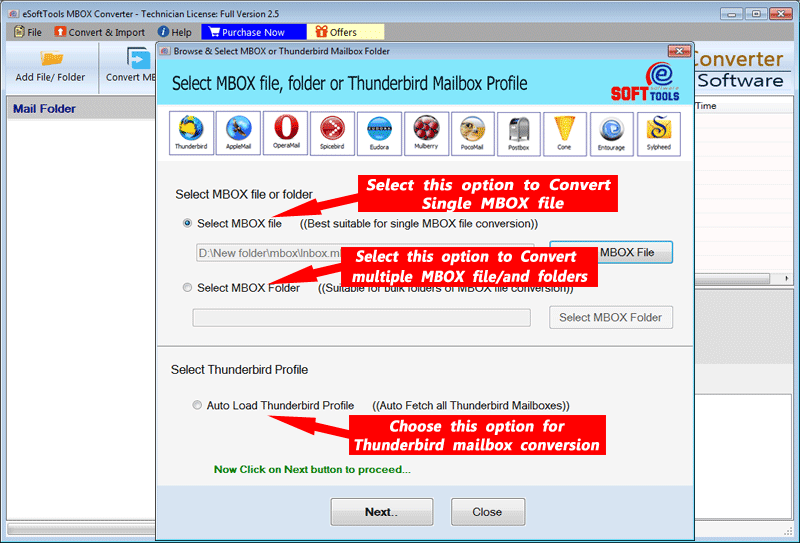
- After file/folder selection hit on Next to move for the another steps.
- In the next window, you will see a preview of all MBOX folder inner items and you can also see all email items individually. Choose all the needed MBOX folders and click the Convert MBOX button from the menubar.

- Next, a new “MBOX Conversion wizard” opens up. From this window you can choose Single PST or Separate PST file for each mailbox from the conversion options section to Convert MBOX to PST.
(Also, various other file types is availble in the software that user try to Convert MBOX file like- EML,EMLX, MSG, HTML, NSF, Office365, Gmail, & Yahoo) - Make selection of required file type, apply mail filter then hit on browse to choose the saving location.

- In this last steps youjust need to click Convert to begin the task of Converting MBOX to PST files.
Importing PST File into MS Outlook
After completing the process of MBOX file data into New Outlook PST file, now easily open/view PST file into Outlook. For this simply import PST file in Outlook with the following steps:-
- Start MS Outlook program.
- Vist file > Open & Export > Import/ Export.
- Select the option Import from another program or file and tap next.
- Choose Outlook data file (.pst) and click Next.
- Select the PST file you want to import by clicking the browse button.
- In the next screen select folder, you like to import and hit on finish.
Final Words
In this article, we have shared the complete process to convert Apple Mail MBOX to PST. Simply follow all the steps mentioned above to convert MBOX to PST and importing PST files into Outlook. To accomplish the task of MBOX file conversion just download the automated software “eSoftTools MBOX to PST Converter tool”. Without any technical knowledge, you can run this tool with complete security.