
Last updated: December 9th, 2021 at 02:49 pm
Are you having trouble while transferring data from Outlook to email clients like- Thunderbird or Apple Mail? The process that will help you in that scenario is OST to MBOX file conversion process. Here, in this blog post, you’ll learn about how to convert Outlook OST to MBOX file format.
In this list of email clients that available for secure emailing Microsoft Outlook is on the top position. It provides advanced features, easy user-interface and perform the mailing process process with complete security. After sending/recieving every email Outlook saves its copy in data files OST and PST automatically.
Outlook has various features and a large number of users are familiar with this application. Also, it comes with a trial edition facility by which a user can use access Outlook free of cost for a specific time. But after trial verion expiry users needs to purchase licence of MS Office.
Apart from purchasing Outlook licence user’s prefers using free email clients like- Apple Mail, Thunderbird, etc. But the OST files are only workable in MS Outlook moving them directly to another application is not possible.
As a result, to transfer data from Outlook users requires to Convert OST to MBOX or any other file format. Now let’s what is the possible method to Convert OST to file format.
Also Read:- How to Convert/Save Outlook Emails from OST to EMLX files?
Instant & Reliable Solution to Convert OST to MBOX file format
The solution which will allow you to Export Outlook emails from OST file to MBOX file is InstantDataCare OST Converter Software. This is the program which can allow you to export all mail folders from Outlook OST to MBOX files. It has special features to the OST to MBOX file conversion with an instant process. Using this utility users can transfer OST file mail folder folder with all emails and attachments with complete security.
How to Convert Outlook OST to MBOX file Using IDC OST Converter Softawre?
- Download and Launch IDC OST Converter Software to a windows based computer.

- From the software’s main screen, press the “Add OST” button.
- Then, click the browse button and add OST into the software.

- Start OST file scanning process and extract all folders, subfolders, as well as individual emails and other items.

- Select the required OST folders and from the menubar press the Convert OST button.

- From the list of conversion choices, choose the MBOX file format (*.mbox) radio button.
- By hitting the browse button, you may choose a location for saving resultant MBOX files.
- Finally, click on Convert Now button to begin the OST to PST file conversion process.
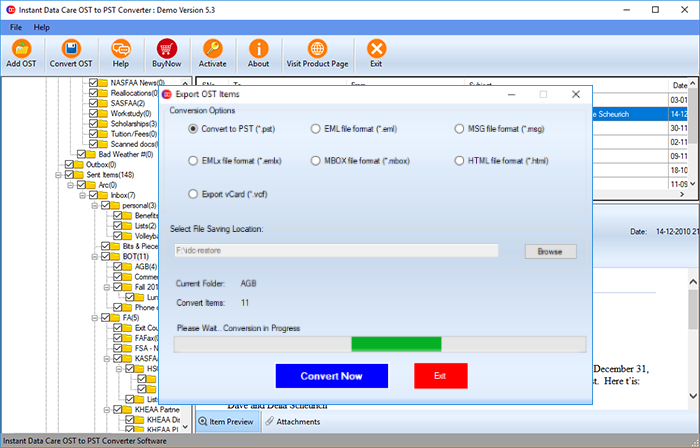
After conversion completion software will show a completion dialog window simply close it by pressing the OK button. Next, open windows explorer and move to location where have saved the new MBOX files. Now easily access these MBOX file with Thunderbird or application.
Conclusion
Above we have descibed the complete steps and reliable solution to Convert Outlook OST to MBOX files. The instant and best technique to convert OST to MBOX file is using automated software. You can simply utilise InstantDataCare OST Converter. Also, specialists recommends this utility to perform OST to MBOX conversion task with ease. It can simply convert OST file with all Mail folders to MBOX format without losing a single bit of information. To get more details about this software working process or functions, make use of its demo edition.