
Are you seeing an error like- “OST cannot be opened” while opening MS Outlook application? Due to this reason are you unable to access some of your important data? If this same is your case, then this blog is the best place for you. In the blog post we are going to find why this occurs in outlook also we will describe the process of “How to Resolve Error “Outlook.OST Cannot Be Open Error” In Microsoft Outlook?”
The first choice of every individual user, as well as large businesses for emailing, is using a desktop-based Outlook email client. This amazing program comes with an MS Office suite to do the emailing task with complete security. Many organizations use the email client with Exchnage Server. In this case of configuring an Exchange account in Outlook by default, it creates an OST file. The OST is a file type in which outlook saves all user’s mailbox items locally. Sometimes while accessing these files in Outlook users faces problems and see an error like- “Outlook.OST Cannot Be Opened”.

There can be various reasons behind this error and when this error occurs in Outlook users becomes unable to access their information from OST files.
Reasons why “OST file Cannot Be Open Error” appears in Outlook:-
- Problem with connection of Outlook account with Server
- OST file is in use with any other application.
- Unsuported add-ons in Outlook
- If a user is trying to import some orphaned OST files in Outlook.
- Corruption in Offline OST file of Outlook.
These and various other reasons can create problems in Outlook and users will face errors like- OST file Cannot Be Open.
Get the fastest and the most secure InstantDataCare OST to PST Converter to securely repair PST files and resolve all Outlook errors with smart steps.

How to Resolve Error “Outlook.OST Cannot Be Open Error” In Outlook?
Below mentioned are some of the best techniques that users can follow to easily resolve this error or access OST file data:-
- Turn off all processes related to MS Outlook:- Open task manager and check the programs that using Outlook. Right-click on it and hit the End Task button to close them easily.
- Disable Cache Exchnage Mode:- To resolve error Outlook.OST Cannot Be Opened Error user can try to disable cache Exchange mode applying following steps:-
1) Close Outlook application and open Control Panel
2) Choose Mail option, select Email Accounts then hit the Email tab.
3) Next click on Exchnage Account >>Change.
4) From offline settings uncheck the “Cached Exchange Mode” option and hit the Next button. - Uninstall unsupported Outlook Add-Ons:- First open Outlook in safe mode and check error is resolve or not. To do this simply in “run” dialog box, type outlook.exe/safe and click on OK. After the this Outlook will open in safe mode. Now start removing all Add-ins that creating problems in Outlook:-
1) Open Outlook, click the File tab >>Options >> Add-ins.
2) From the Outlook Options window, move to Manage Section.
3) Next, select COM Add-ins option from drop-down menu and then click the Go… button
4) Unselect all add-ons and click on OK.
After add-ons removing process open Outlook normally and access your profile without any problem.
- Repair Corrupt Outlook Data file:- Mostly all Outlook errors resolve automatically after repairing data files OST. There are two different method to repair corrupt OST files. First is manual method (ScanPST.exe) tool and secound is Automated OST Recovery tool. Below mentioned are complete working steps of using both methods. Follow all steps to resolve Outlook error easily.
Method 1:- Repair Corrupt OST file with Inbox Reapir Tool (ScanPST.exe)
- Start Inbox Repair Tool/ScanPST.exe tool on your computer.
- Next hit on Browse button and add OST files for repairing.
- Press the Start button to begin the OST file scanning process.
- After this, hit Repair button and remove corruption problems form Outlook OST files.
Method 2:- Automated solution to Resolve “Outlook.OST Cannot Be Open Error”
ScanPST.exe is a free tool to repair OST files but sometimes it doesn’t provide the best results to its users. So, the recommendation of every expert is to use automated methods to repair OST files.
The automated tool to resolve Outlook errors like- OST Cannot Be Open Error is InstantDataCare OST to PST Recovery/Converter Software. This software will help users to access entire data from corrupt OST files and move them to readable PST files.
Steps to Repair OST files with OST to PST Recovery Tool
- Download & Open OST to PST Converter software of InstantDataCare on your machine.
- Hit the Add OST button from the first screen of the software.

- Click on browse and select corrupt OST file from its location.

- Software will scan OST files and repair all corruption errors and extract all data from OST files.

- Make selection of required data from OST files and hit the Convert OST button from top menu.
- From conversion options choose Convert to PST radio button and select a destination path to resultant files.
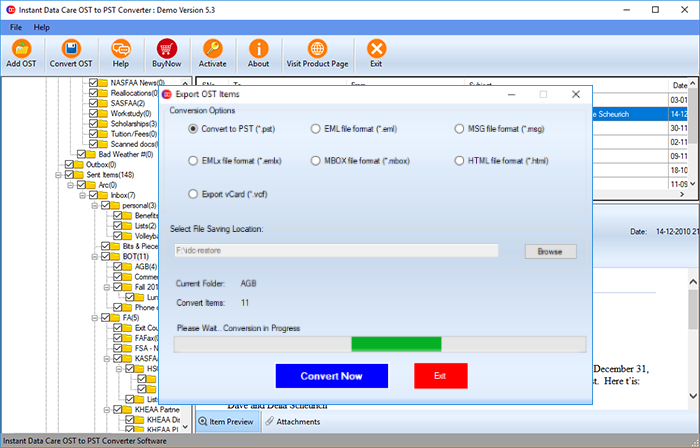
- Finally, press the Convert Now button and start moving data from corrupt OST file to new working PST files.
After getting new PST files, configure an account again in Outlook and import these PST files. Now use MS Outlook without facing any kind of error like- Outlook.OST Cannot Be Opened Error.
Conclusion
Above we have described the all techniques to resolve Outlook.OST Cannot Be Opened Errors. Users can try them all to resolve Outlook errors. If the reason behind the corruption error is a corrupt OST file and unable to get results with ScanPST.exe. Then don’t thin anymore and simply use InstantDataCare OST to PST Converter Software and repair PST files with ease.