
Last updated: October 28th, 2021 at 05:59 am
Looking for a simple method to import OST to Thunderbird email client? then this article is for you. Through this blog, we are going to discuss the instant solution to import OST to Thunderbird for accessing all email items of the OST file in Thunderbird.
MS Outlook creates OST file for storing all user mailboxes (similar to PST file). Most organizations use Outlook because of its amazing features for their ease. But there are some reasons why the user now wants to switch from Outlook to Thunderbird. Before going to the migration process of Outlook OST to Thunderbird, you have to know the reasons to import OST to Thunderbird.

Convert OST file to MBOX format through eSoftTools OST to MBOX Converter software to quickly import OST to Thunderbird, and other mbox supported email clients
Why do users need to Import OST files in Thunderbird?
Various organizations or large enterprises use MS Outlook for email services. Bur MS Outlook not ideal for home users or small organizations. They cannot afford this costly application. On the other hand, Thunderbird is a free open-source email application available for every user. That’s why for doing the emailing task in a free and easy manner every user suggests the Mozilla Thunderbird application.
Method to Import OST to Thunderbird email client
Manual methods are available to perform the OST to Thunderbird migration. But for using those manual methods you should have some technical skills otherwise the task of importing OST files in Thunderbird will become difficult for users. Now the question is how a normal user can do this task of importing OST to Thunderbird? After seeing this problem eSoftTools has launched an application known as OST to MBOX Converter Software. This utility has the power to simply convert OST to MBOX files for Thunderbird without any data loss.
How to Import OST to Thunderbird with eSoftTools
- Get the OST Converter tool and install it on your machine.
- Launch the software and press Select OST button from the menubar.
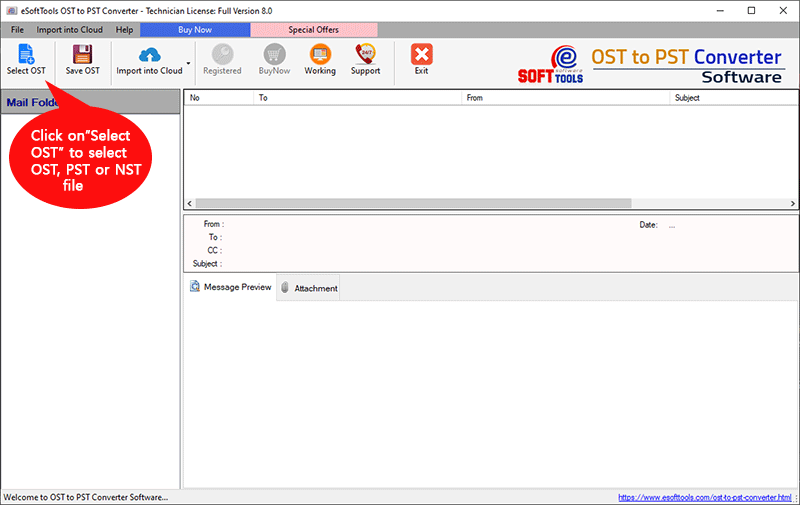
- The software will now open a new window with two options:- Select File & Search OST Mailbox. Choose any one option and browse the location where your OST file is located and select it.

- Press the Start Scanning button and see the live preview of emails and other components of OST file.
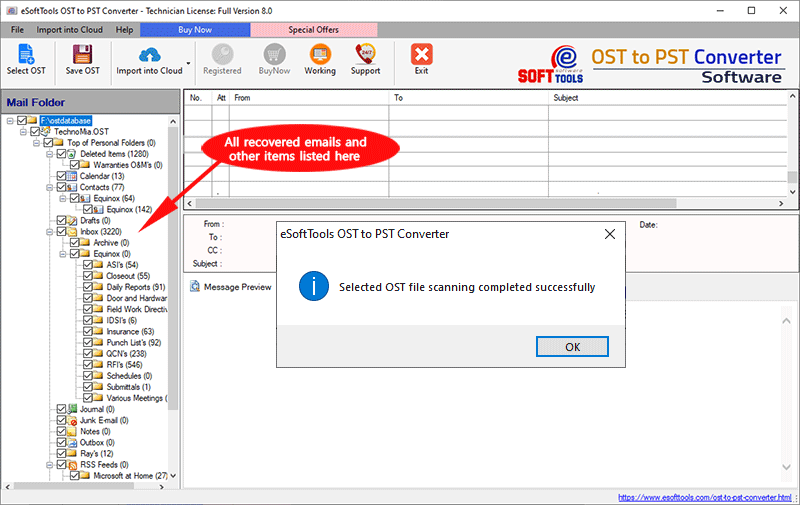
- Select the required folders from the preview panel and go for the next conversion steps.
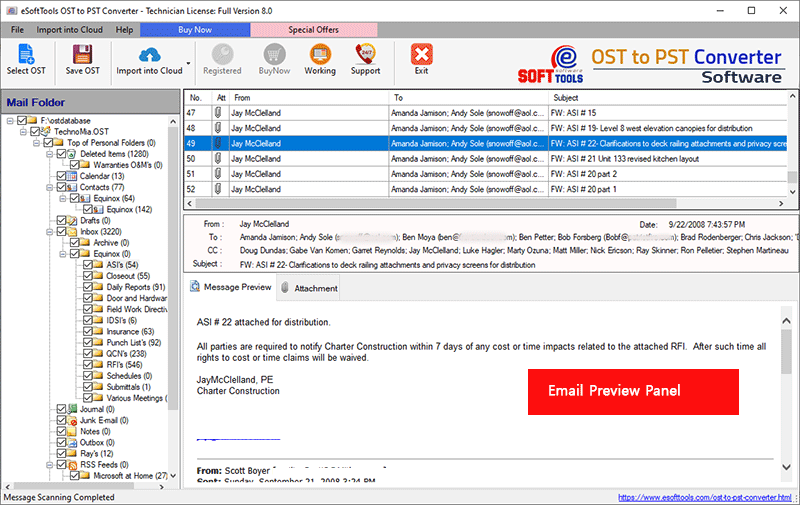
- Click on Save OST button from the menubar.

- From the new opened window select the conversion option Export to MBOX, file saving location, and click on Convert button.

- Start the Conversion process and by applying these steps you will Convert OST file to MBOX format.

Now Open the Thunderbird application and easily import the resulted MBOX file in it to see all your OST file email items folders in Thunderbird.
Conclusion
Importing OST files into Thunderbird is a challenging task if done manually. So, our suggestion is you must use the software automated software eSoftTools OST to MBOX Converter. It is a quick, professional software for effortless conversion. And any person can take the help of this software to transfer data from Outlook OST to Thunderbird with no problem.