

Suppose, there comes a situation when the user will find his OST file corrupted. Now the question arises whether there is any suitable method is available to repair Outlook OST? In this blog, the users are informed about the process to repair the Outlook OST file in Windows 10.
Methods to perform repairing process of Outlook OST
Manually Repair Outlook OST file in Windows 10
In this method, you are going to delete the OST file. Before doing this process you have t make a backup of OST file.
- Open Control Panel on your Windows computer then click on the User Accounts option.
- After this select the Mail option.
- In the “Mail Setup” window, click the Show Profiles button.
- Select the profile that you want to fix then click on Properties.
- Now choose the Email Accounts option from the opened window.
- Click over the Data Files tab and select the corrupt account and choose the Open File Location option.
- Now right-click on the .ost file and delete this file.
Again launch MS Outlook and user will see that the error error is now fixed.
Mechanical solution to Repair Outlook OST file
The manual method to do repairing process in a very time taken and risky process. Hence we have to depend on an automated third party tool. To repair the corrupt OST file user should IDC OST to PST Converter Software. The is the best utility that can make the recovery as well as the conversion of the OST file in windows 10. You can use this tool on any version of windows including- 10/8/7/XP/ & below version.
How to Repair Outlook OST file in Windows 10
First of all download the IDC OST to PST Recovery Software from the official website of Instant Data Care. Then install it on your windows installed computer.
- Open this software and click the Add file option

- Add the corrupt OST file from its location in this software by clicking on the Browse button.

- Get a live preview of all the inner items and folders of your corrupt OST file on your screen after scanning of OST file.

- Now, click on Convert OST from the top menu and select the option Convert to PST (.pst).

- After selecting the destination path, then click on Convert Now to start the process to repair corrupt OST file and Export OST items in a working PST file.
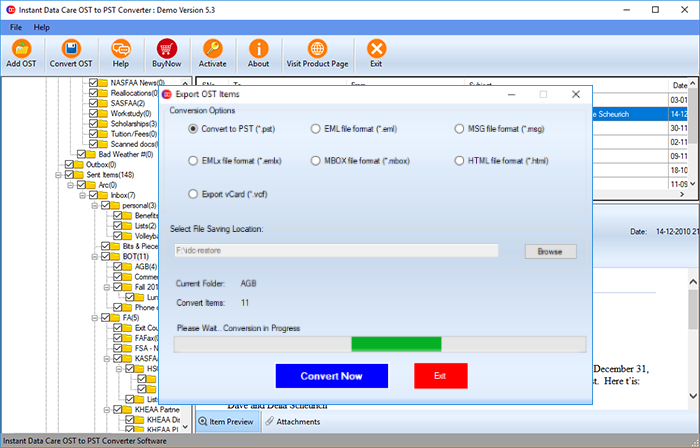
Now simply Launch the Outlook application in your windows 10 or other version of computer and import this PST file in it, and easily Repair Outlook OST file error.
Conclusion
Here a step by step process is explained about how to repair the OST file in Windows 10/8/7/Xp or other versions. And as you see the automated tool of IDC is known as OST to Recovery software is the perfect choice to repair a corrupt OST file.